Guides › ImageRenamer
Guide · ImageRenamer · 3 min read
Batch rename images without changing originals
A consistent naming pattern makes a photo set or design export easier to scan and hand off. Decide the order first, then apply a predictable sequence.
Choose a pattern
A simple pattern such as project_001, project_002, and project_003 sorts cleanly in Finder. Choose a prefix that describes the set, a padded number wide enough for the batch, and an optional suffix if it adds useful context.
Add and order the images
Add individual images or a folder to ImageRenamer. Review the list or thumbnail grid, then reorder images before exporting. The sequence updates when you insert or move an item.
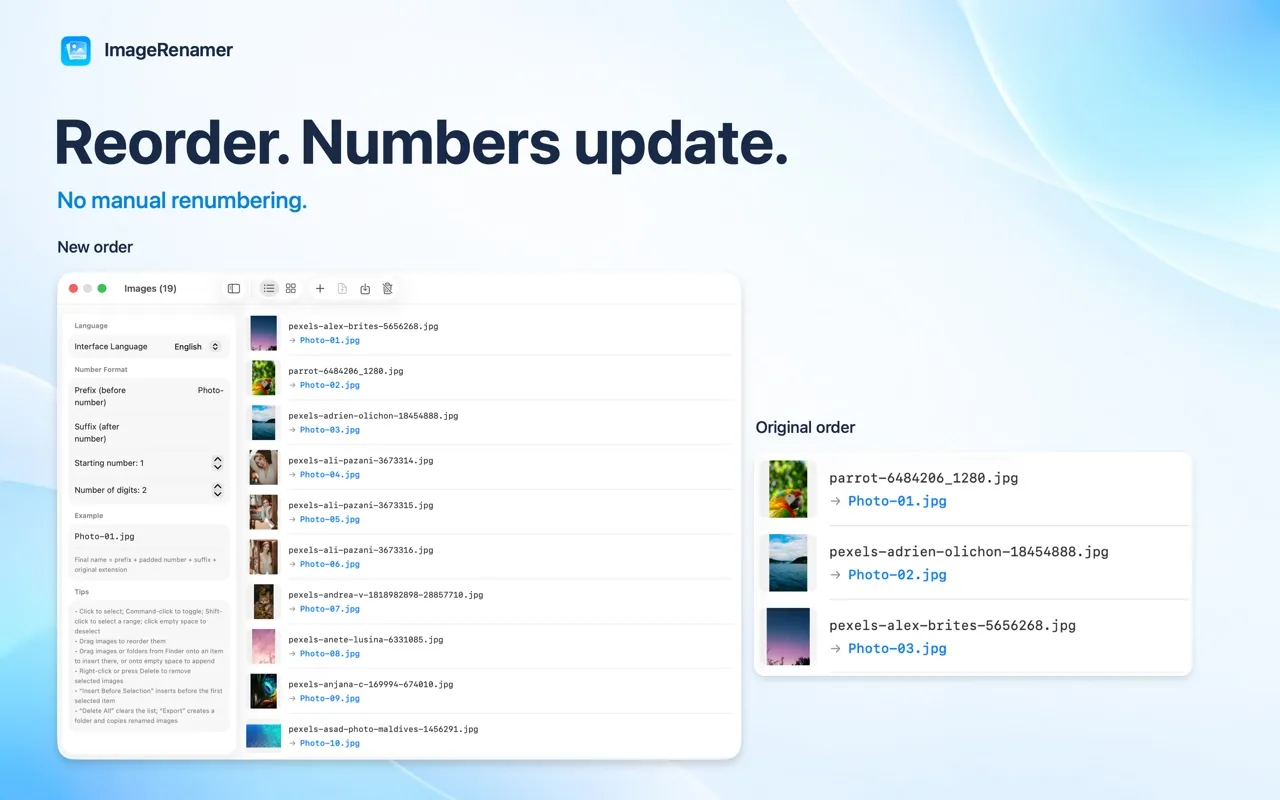
Add and order the images Preview before export
- Scan the proposed names for missing or duplicated sequence numbers.
- Check the order against the story, product catalog, or shoot sequence you intend to deliver.
- Review duplicate-file warnings before deciding whether the same image belongs twice.
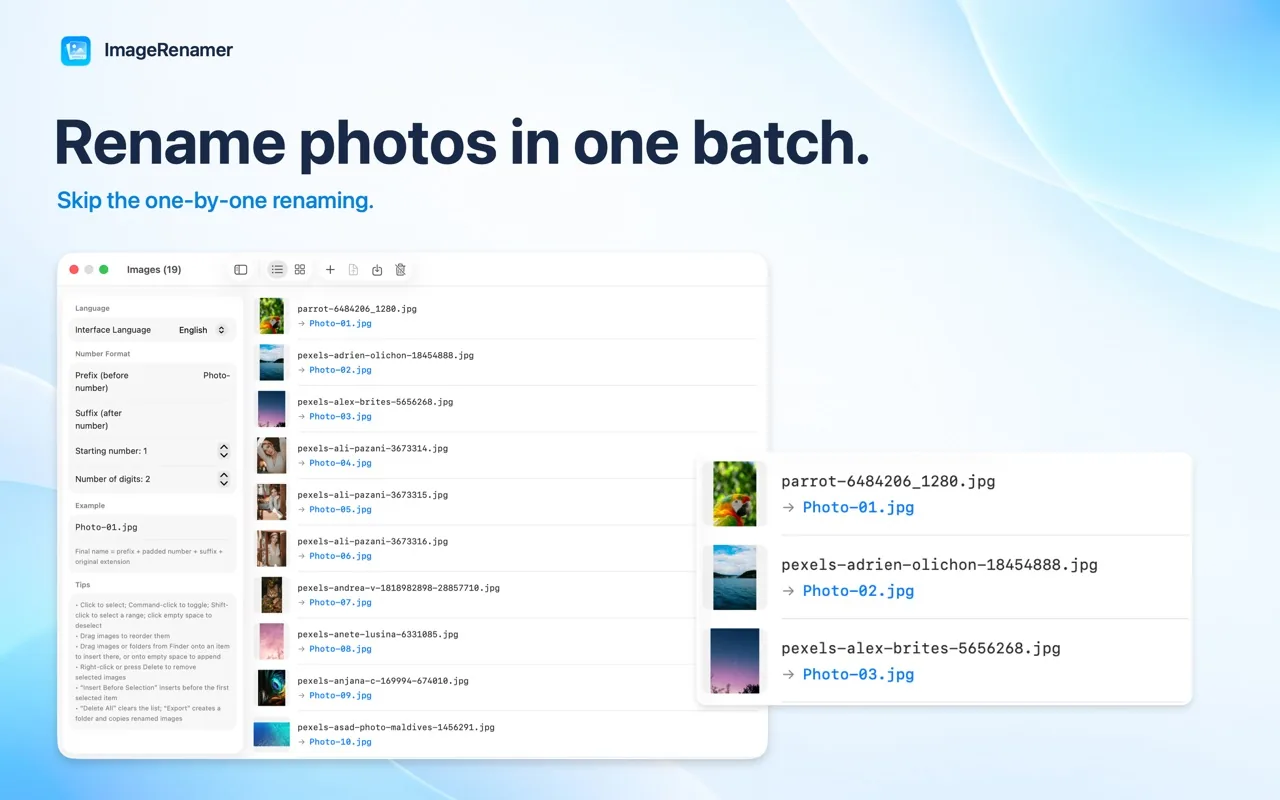
Preview before export Export renamed copies
Export to a new folder. ImageRenamer creates renamed copies, so the source files and their original names stay in place. Open the exported folder in Finder for one final check.
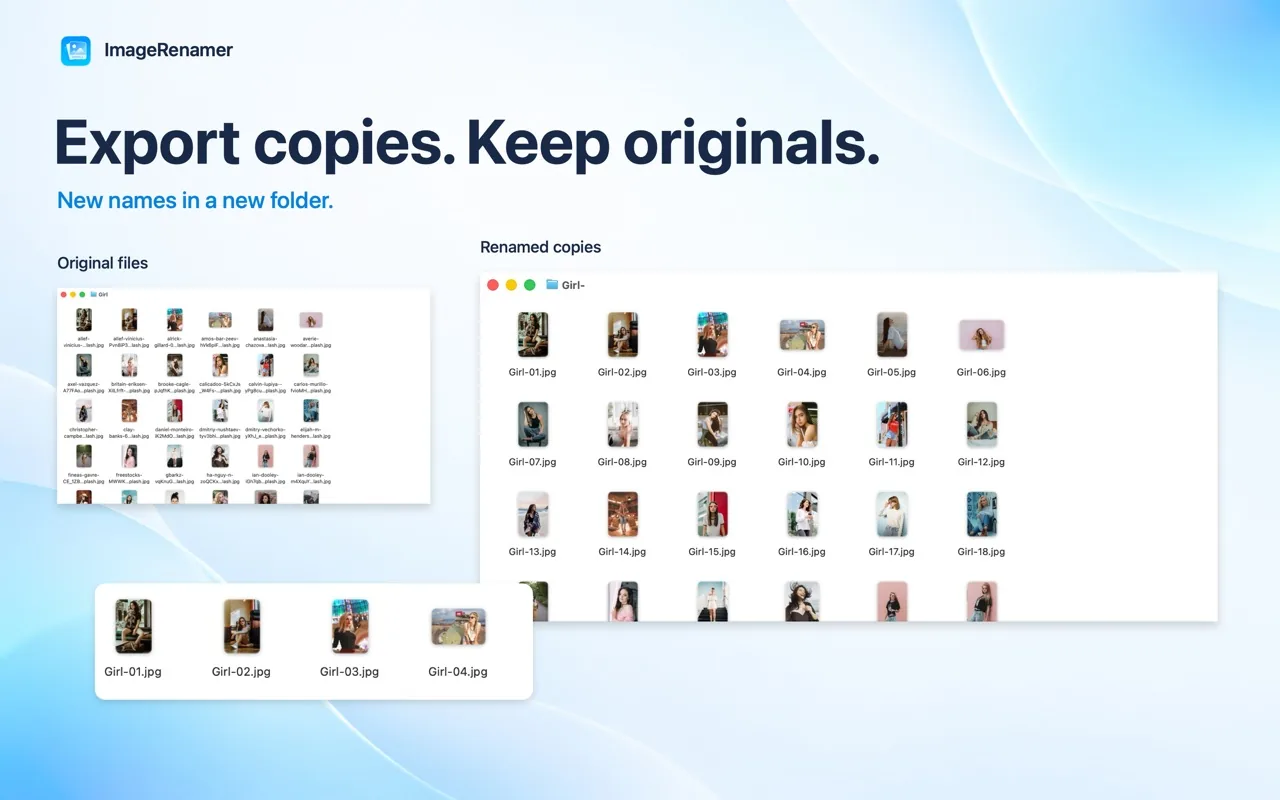
Export renamed copies
Frequently asked questions
Are my original files changed?
No. ImageRenamer exports renamed copies into a new folder; the source files and their original names stay in place.
How do I import images?
Use Add Images or Add Folder, or add files from Finder.
Why does macOS ask for permission?
Select an output folder when macOS asks for permission. The app accesses only the images and folders you choose.

Try ImageRenamer: Batch Rename
Batch naming on Mac, with reordering, content-based duplicate detection, and copy export.


Updated October 2026.